
WHAT IS PYTHON ?
Python is a popular programming language. It was created by Guido van Rossum, and released in 1991.
WHAT IS USE OF PYTHON?
It is used for:
web development (server-side),
software development,
mathematics,
system scripting.
Why Python?
🔴PYTHON works on different platforms (Windows, Mac, Linux, Raspberry Pi, etc).
🔴Python has a simple syntax similar to the English language
🔴Python has syntax that allows developers to write programs with fewer lines than some other programming languages.
🔴Python runs on an interpreter system, meaning that code can be executed as soon as it is written. This means that prototyping can be very quick.
What can Python do?
✨Python can be used on a server to create web applications.
✨Python can be used alongside software to create workflows.
✨Python can connect to database systems. It can also read and modify files.
✨Python can be used to handle big data and perform complex mathematics.
✨Python can be used for rapid prototyping, or for production-ready software development.
Below are some facts about Python Programming Language:
🔝Python is currently the most widely used multi-purpose, high-level programming language.
Python allows programming in Object-Oriented and Procedural paradigms.
🔝Python programs generally are smaller than other programming languages like Java. Programmers have to type relatively less and indentation requirement of the language, makes them readable all the time.
🔝Python language is being used by almost all tech-giant companies like – Google, Amazon, Facebook, Instagram, Dropbox, Uber… etc.
⚫The biggest strength of Python is huge collection of standard library which can be used for the following🔽
ℹ️Machine Learning
ℹ️GUI Applications (like Kivy, Tkinter, PyQt etc. )
ℹ️Web frameworks like Django (used by YouTube, Instagram, Dropbox)
ℹ️Image processing (like OpenCV, Pillow)
ℹ️Web scraping (like Scrapy, BeautifulSoup, Selenium)
ℹ️Test frameworks
ℹ️Multimedia
ℹ️Scientific computing
and many more..
There are two major Python versions: Python 2 and Python 3. Both are quite different.
PYTHON INSTALLATION
WINDOWS
The Python download requires about 25 Mb of disk space; keep it on your machine, in case you need to re-install Python. When installed, Python requires about an additional 90 Mb of disk space.
Downloading
1Click Python Download.
The following page will appear in your browser.
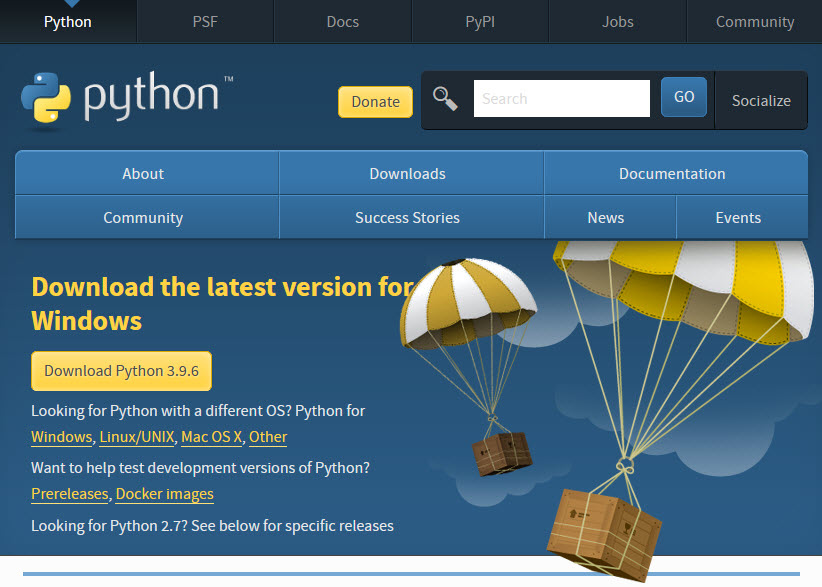
2.Click the Download Python 3.9.6 button. The following pop-up window titled Opening python-3.96-amd64.exe will appear.
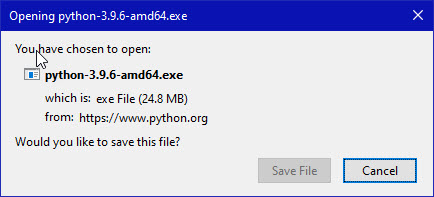
Click the Save File button.
The file named python-3.9.6-amd64.exe should start downloading into your standard download folder. This file is about 25 Mb so it might take a while to download fully if you are on a slow internet connection (it took me about 10 seconds over a cable modem).
The file should appear in your Downloads folder as

3.Move this file to a more permanent location, so that you can install Python (and reinstall it easily later, if necessary).
4.Feel free to explore this webpage further; if you want to just continue the installation, you can terminate the tab browsing this webpage.
5.Start the Installing instructions directly below.
Installing
Double-click the icon labeling the file python-3.9.6-amd64.exe.
A Python 3.9.6 (64-bit) Setup pop-up window will appear.
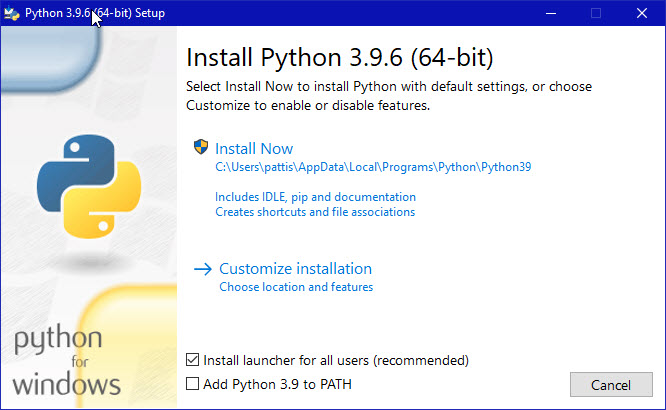
Ensure that both the Install launcher for all users (recommended) and the Add Python 3.9 to PATH checkboxes at the bottom are checked: typically only first is checked by default.
If the Python Installer finds an earlier version of Python installed on your computer, the Install Now message may instead appear as Upgrade Now (and the checkboxes will not appear).
2.Highlight the Install Now (or Upgrade Now) message, and then click it.
When run, a User Account Control pop-up window may appear on your screen. I could not capture its image, but it asks, Do you want to allow this app to make changes to your device.
3.Click the Yes button.
A new Python 3.9.6 (64-bit) Setup pop-up window will appear with a Setup Progress message and a progress bar.
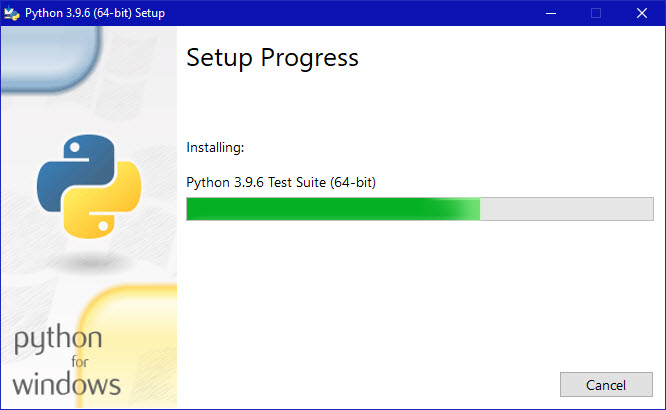
During installation, it will show the various components it is installing and move the progress bar towards completion. Soon, a new Python 3.9.6 (64-bit) Setup pop-up window will appear with a Setup was successfuly message.
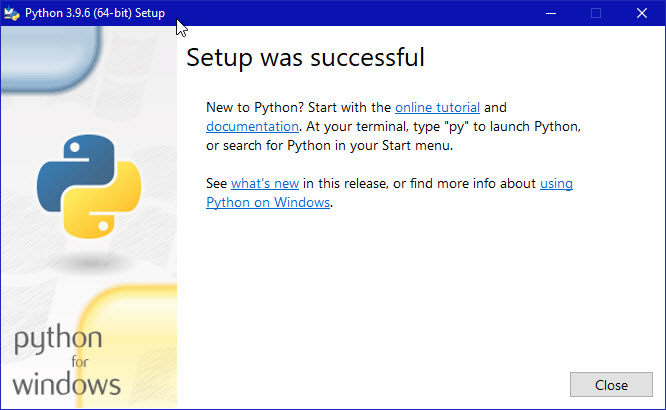
4.Click the Close button.
Python should now be installed.
Verifying
To try to verify installation,
1.Navigate to the directory C:\Users\Pattis\AppData\Local\Programs\Python\Python39 (or to whatever directory Python was installed: see the pop-up window for Installing step 1).
2.Double-click the icon/file python.exe.
The following pop-up window will appear.

A pop-up window with the title C:\Users\Pattis\AppData\Local\Programs\Python\Python39\python.exe appears, and inside the window; on the first line is the text Python 3.9.6 … (notice that it should also say 64 bit). Inside the window, at the bottom left, is the prompt >>>: type exit() to this prompt and press enter to terminate Python.
You should keep the file python-3.9.6.exe somewhere on your computer in case you need to reinstall Python (not likely necessary).
PYTHON INSTALL
ANDROID PHONEn How to download and install Python latest version on Android. Python can run on Android through various apps from the play store library.
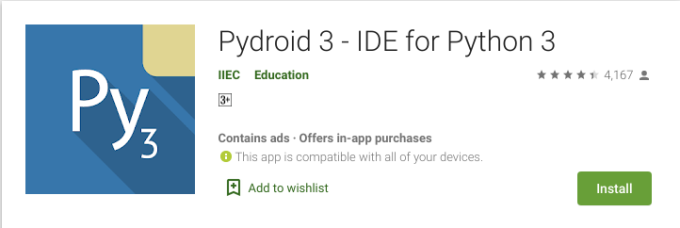
This tutorial will explain how to run python on Android using Pydroid 3 – IDE for Python 3 application.
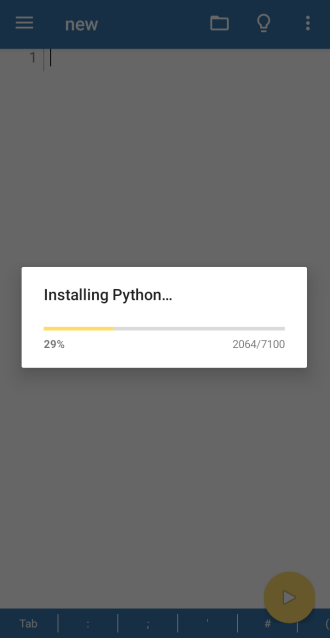
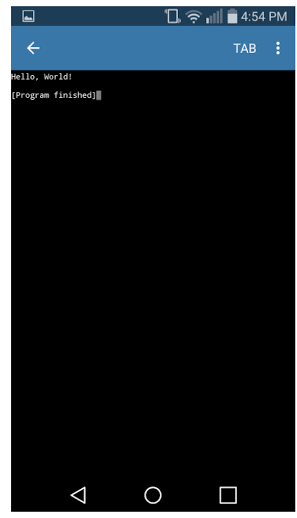
😌After installation is complete, Run the app and it will show as installing python.
😌Wait for a minute and it will show the ide. Here you can enter the Python code.
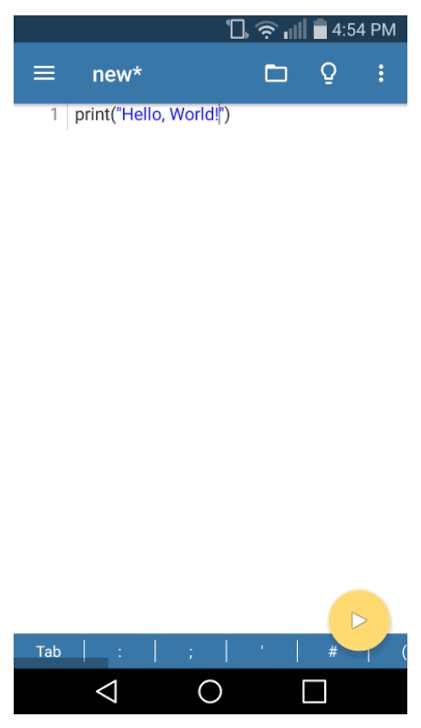
😌Click on the yellow button to run the code.
 LEARN PYTHON 3